
Step 1
Create a small publication
Open Publications in the menu and click the + button. Give it a name, choose the language and page size, and start with four pages. Click Save. If you have already created a publication, open it from the list and carry on with step 2.
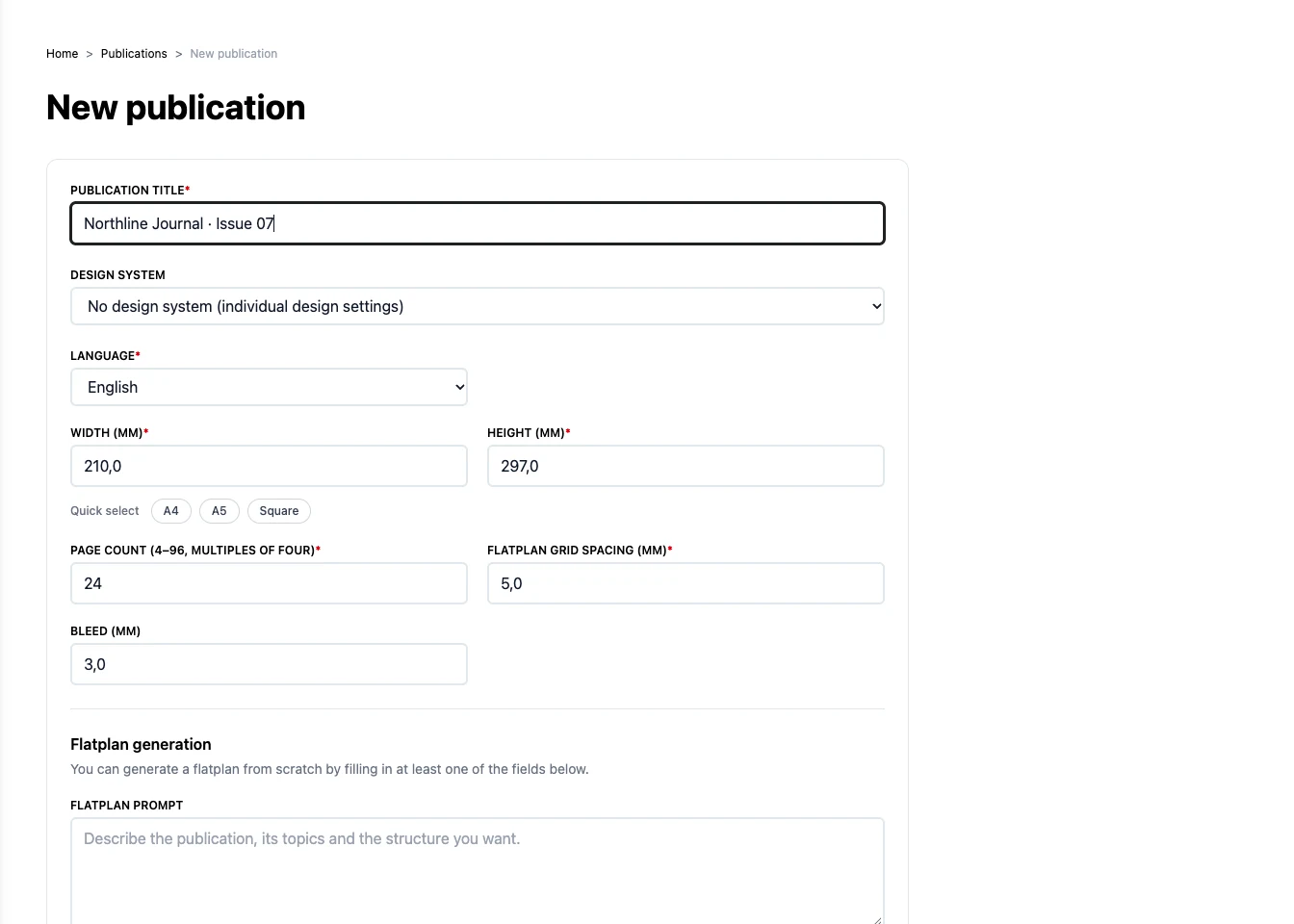
You can leave the design system unselected for your first project.
Step 2
Add your article and images
Open Content in the bottom bar. Under Articles, click Add article, enter a heading, and add your text. The article saves as you type. Close its panel with × when you are done. In Images, use Upload images to add a JPG or PNG. Your content is now in the pool, ready to place.
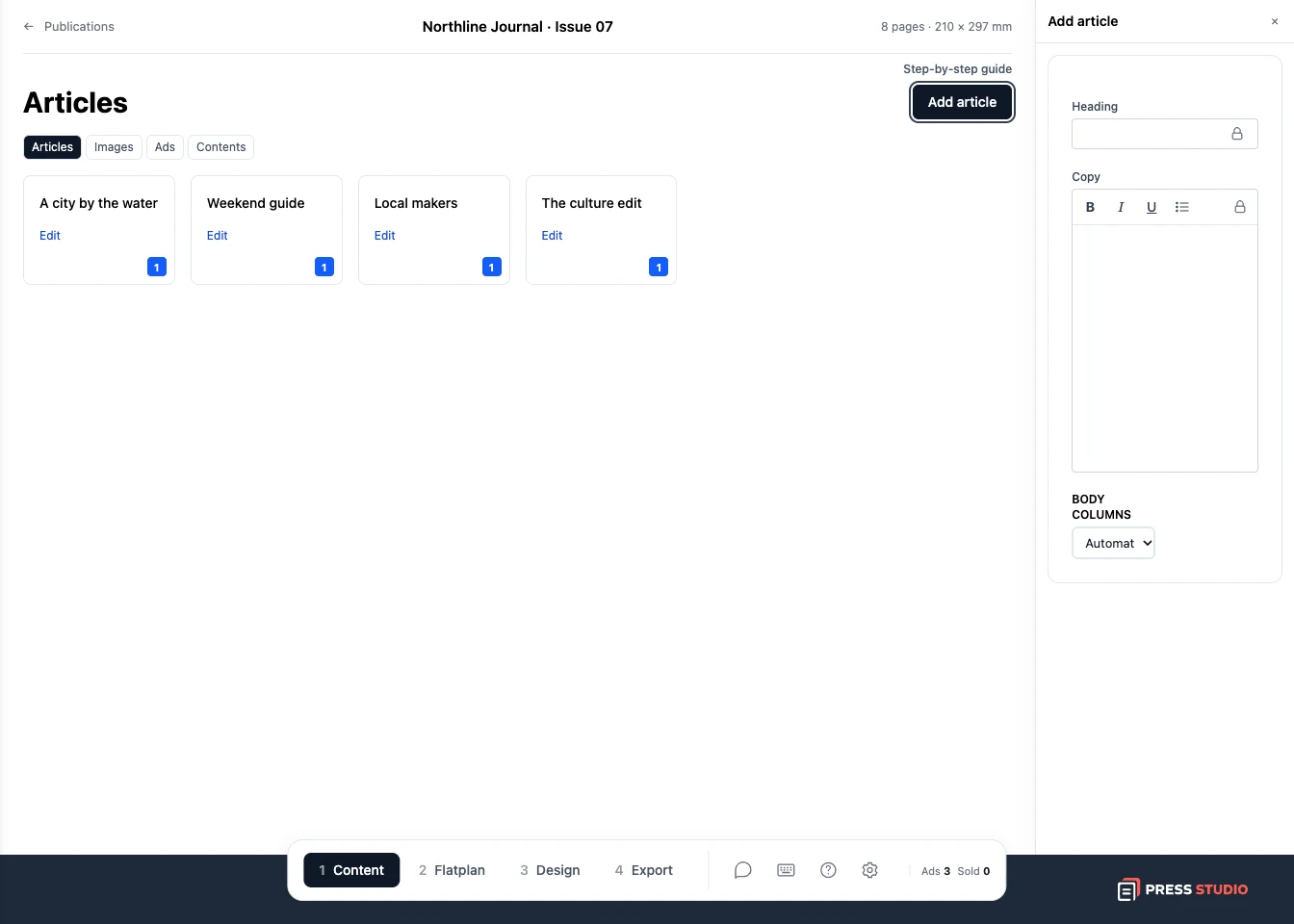
Adding an article to the content pool does not put it on a page. That happens in Flatplan.
Step 3
Put the content on a page
Click Flatplan in the bottom bar. Drag your article from the content pool onto a page. Drag an image onto the page too. Move each block to position it and pull its corner to resize it. Leave room for a cover and a back page.
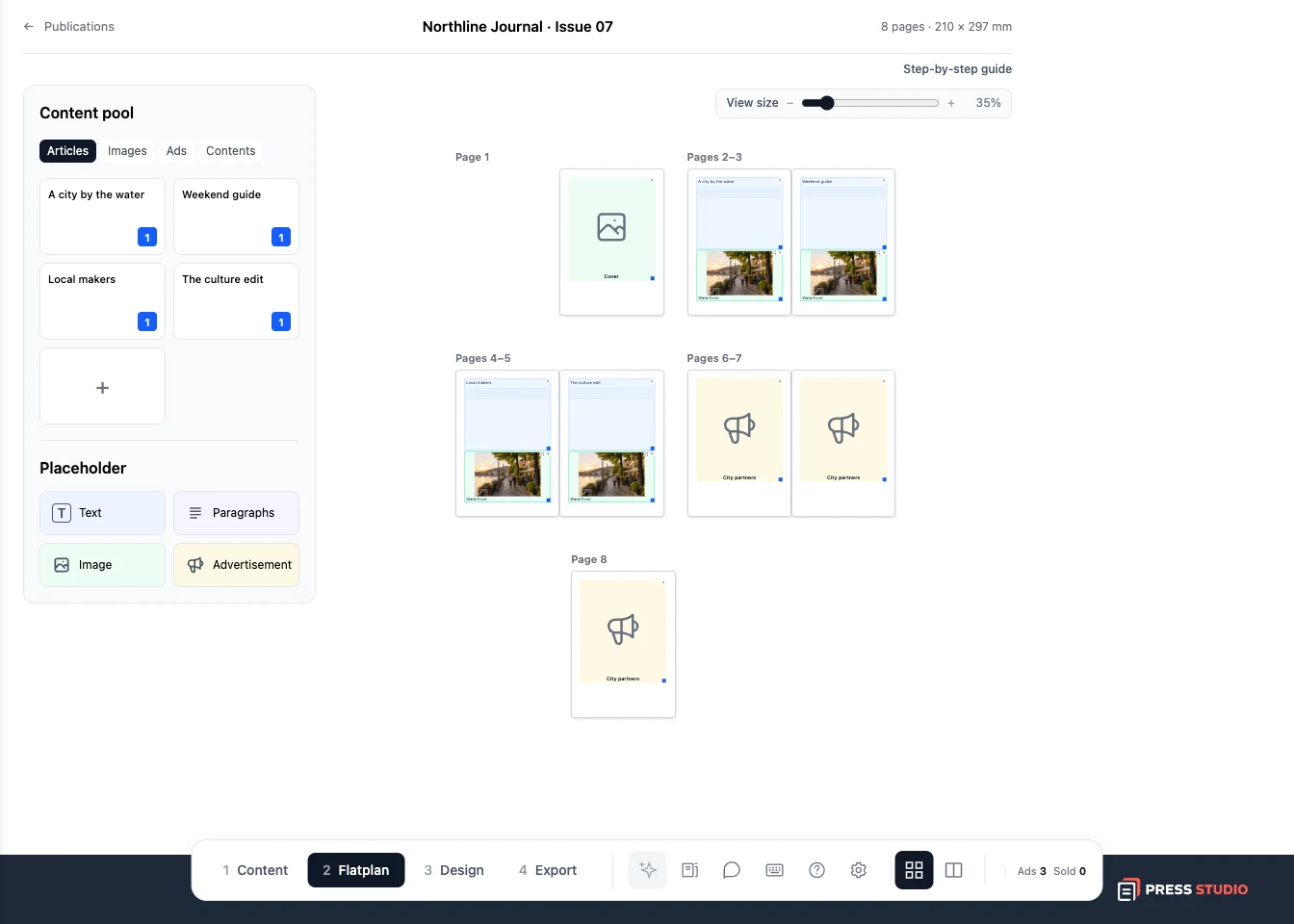
Text and image placeholders reserve space. For a page design based on your article, place the actual article from the pool.
Step 4
Work on the page design
Open Design. Use a page's generation button to create a layout from its placed content. Start with one page, review it, then open the page to adjust the text, images, or layout. The guide to page design explains this in more detail.
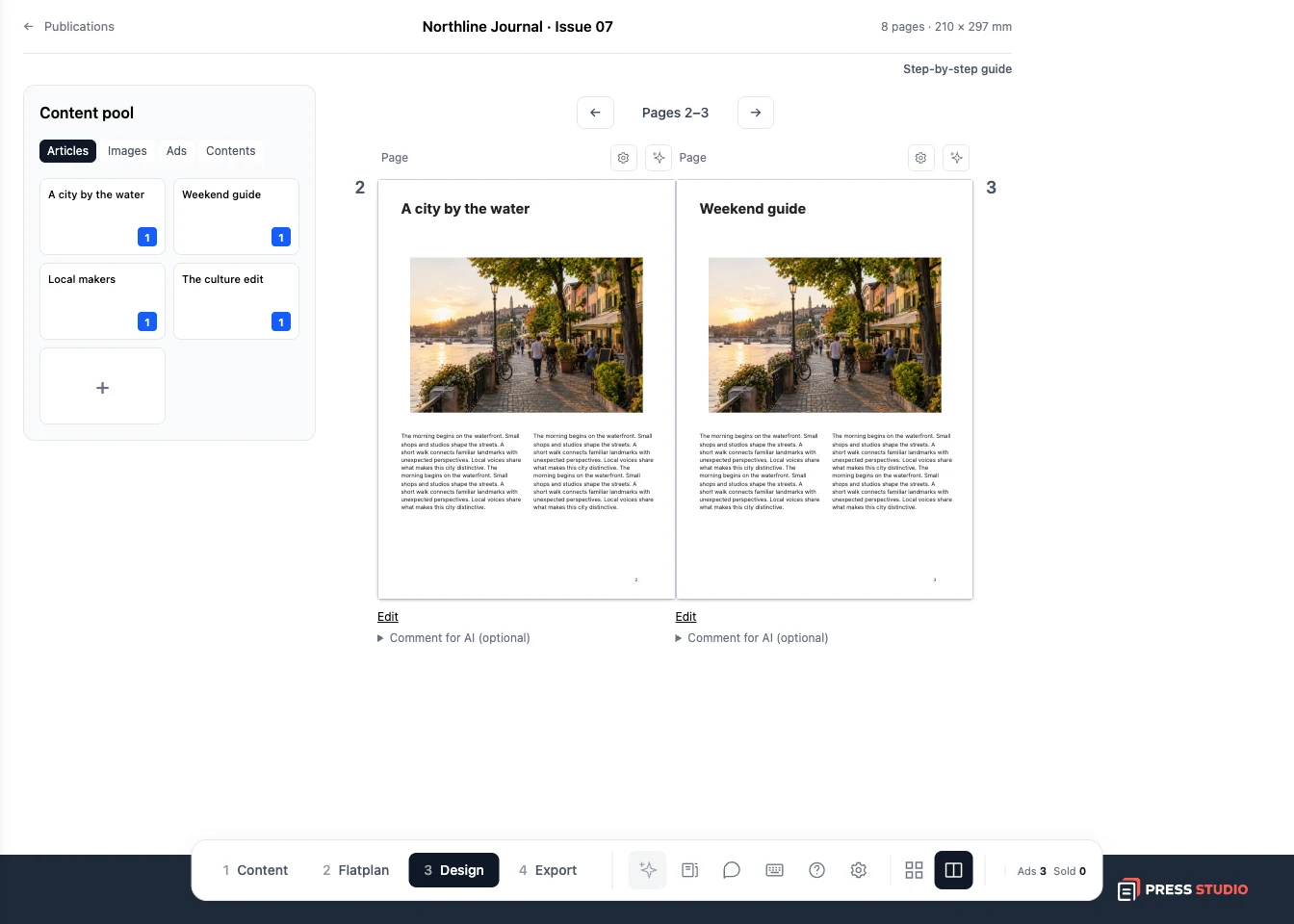
AI generation uses tokens. You can keep planning and export a flatplan without generating page designs.
Step 5
Download your first PDF
Open Export. Choose Flatplan for your page plan or Publication for the designed pages. Select PDF, then click Export. Choose IDML instead if you want to continue working in Adobe InDesign.
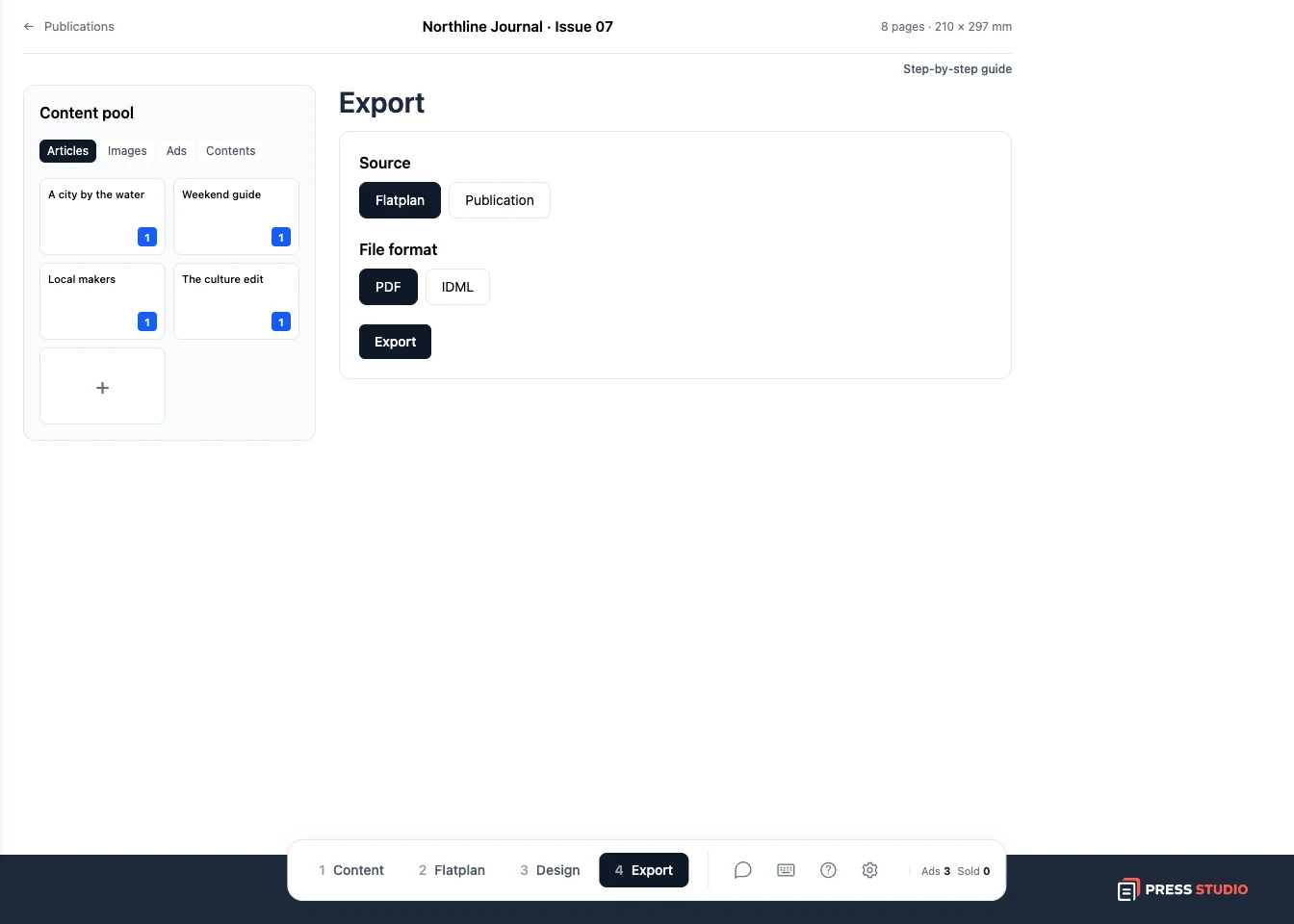
Check the Source choice: a flatplan PDF shows your plan; a publication PDF shows your designed pages.
Try it with your own project
Try placing one article and one image. Export the flatplan first, or continue to Design to turn your content into finished pages.
Create a Press Studio account