
Step 1
Place content from the pool
Open Flatplan. Choose Articles, Images, or Ads in the content pool and drag an item onto a page. For a story that continues across pages, drag the same article onto another page. Use placeholders when you are still waiting for the content.
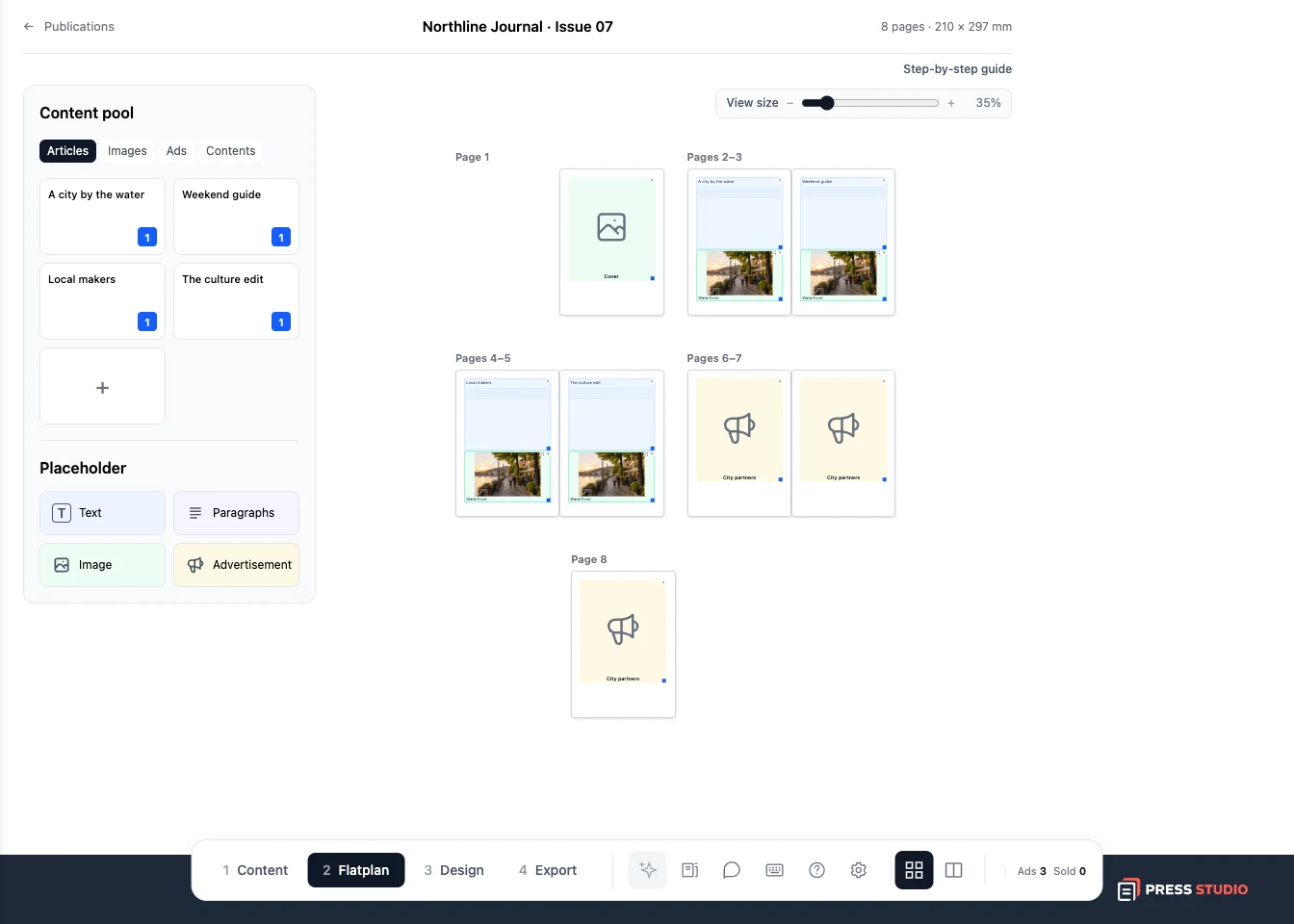
A placeholder is a planning note. Add the real article, image, or ad when it is ready.
Step 2
Give each item enough room
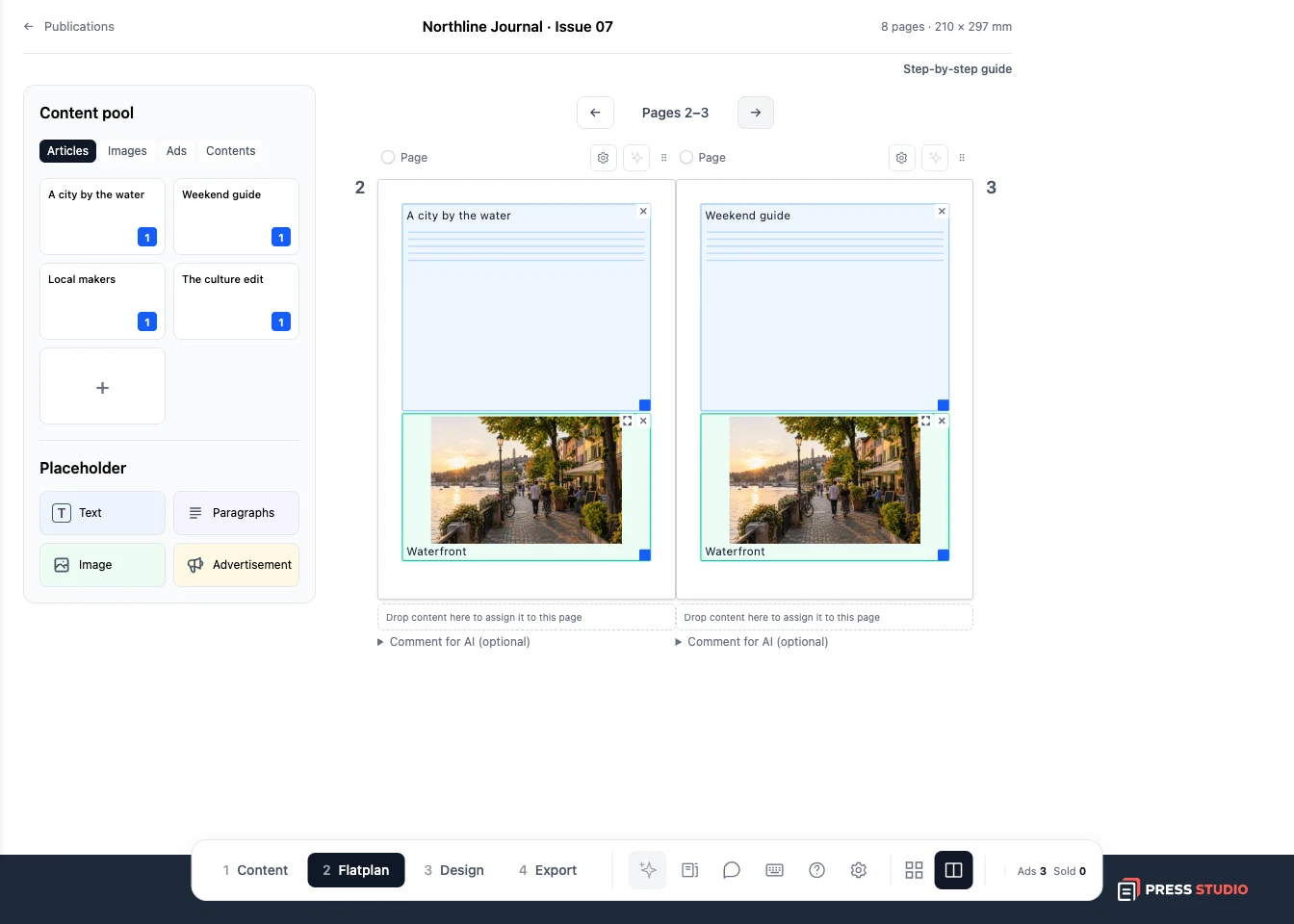
Move a block by dragging it. Pull its corner to resize it, or double-click it to edit its details. Switch from the overview to the spread view in the bottom bar when you want to work on two facing pages.
Step 3
Check the plan and export it
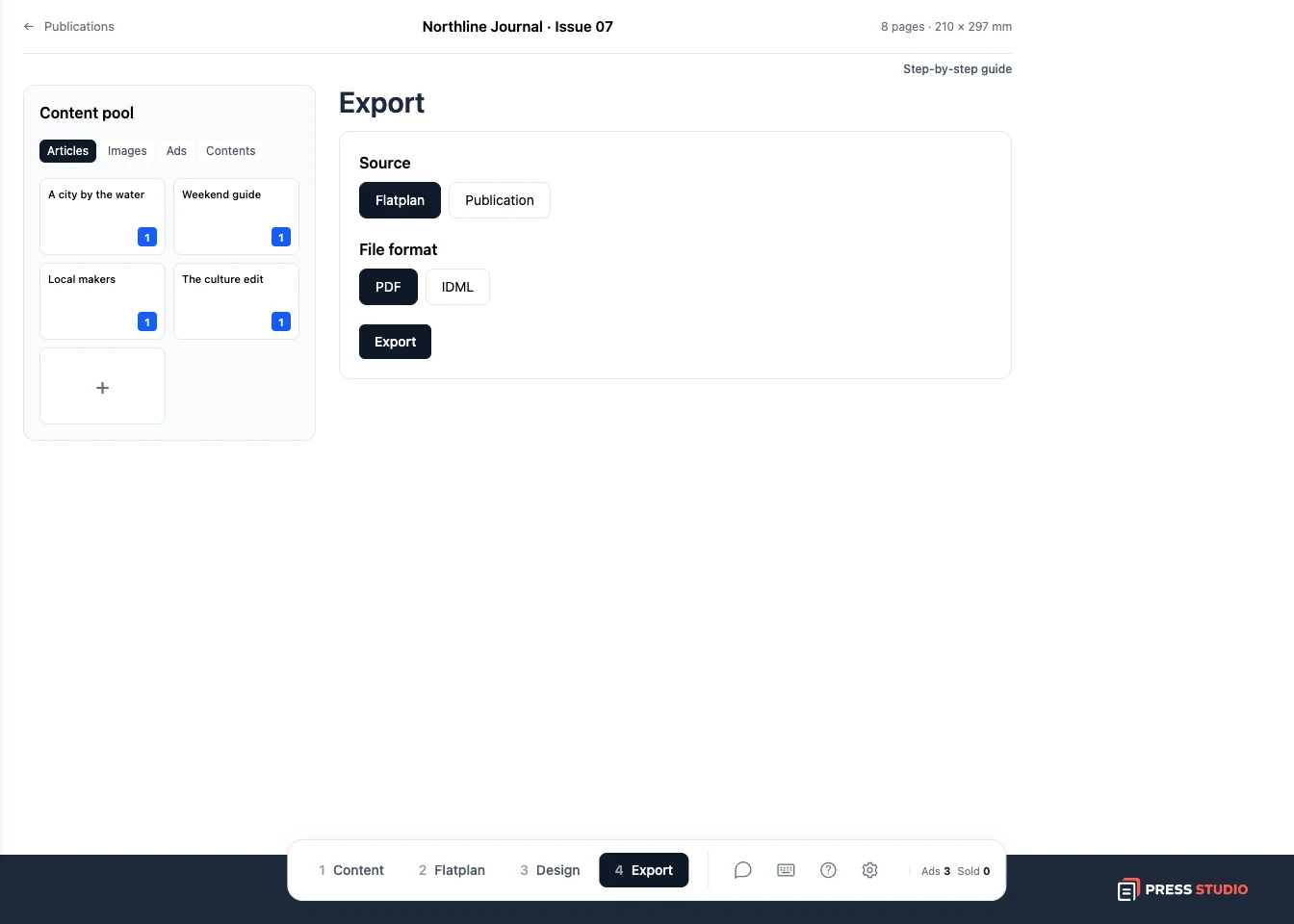
Look through the issue in page order. Check that every story has space and that ads are where you want them. Open Export, select Flatplan and PDF, then click Export to download the plan for review.
Try it with your own project
Plan a four-page issue: a cover, two pages of content, and a back page. Download it from Export with Flatplan selected as the source.
Create a Press Studio account