
Step 1
Upload the source PDF
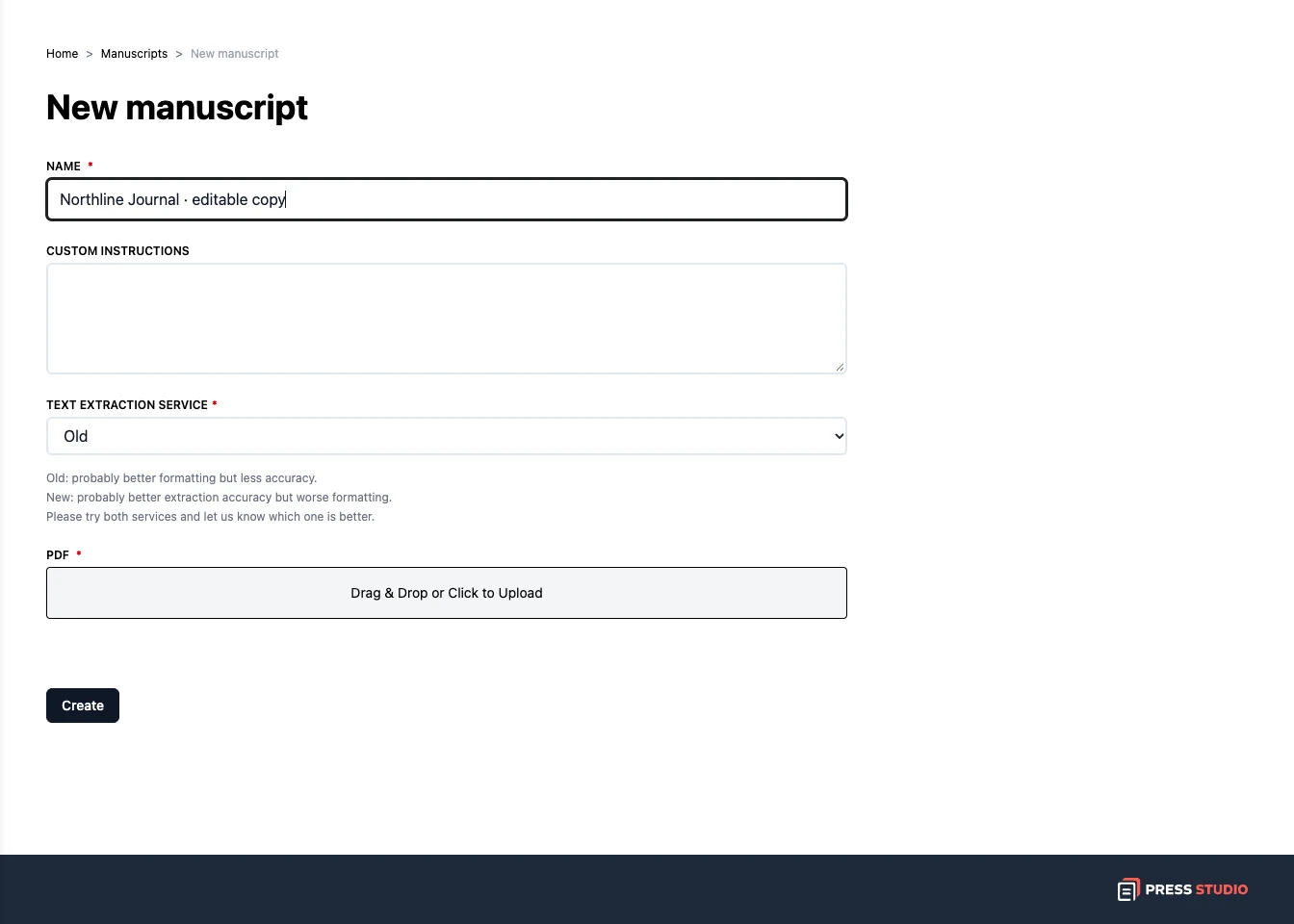
Open Manuscripts and create a new manuscript. Give it a name, add any instructions for the text, choose a text extraction option, and upload your PDF. Click Create.
Step 2
Prepare the pages to extract
Wait for the PDF to finish processing. Review the original file and its pages. If the page asks you to remove ad pages, use that action to prepare the cleaned PDF before extracting text.
Step 3
Extract the text and prepare it for Word
Start text extraction with Generate or Extract Text, as shown on your manuscript page. After extraction finishes, use Start Post-processing to prepare the text for the Word document. You can follow each stage in Generations.
Step 4
Download and review the Word file
Once the Word export is ready, click Download Word. Read through the file alongside the PDF and correct anything that needs attention before using the text in a new publication.
Try it with your own project
Open the Word file and compare it with the source PDF, especially headings, tables, and the order of the text.
Create a Press Studio account