
Step 1
Pick the tool for the job
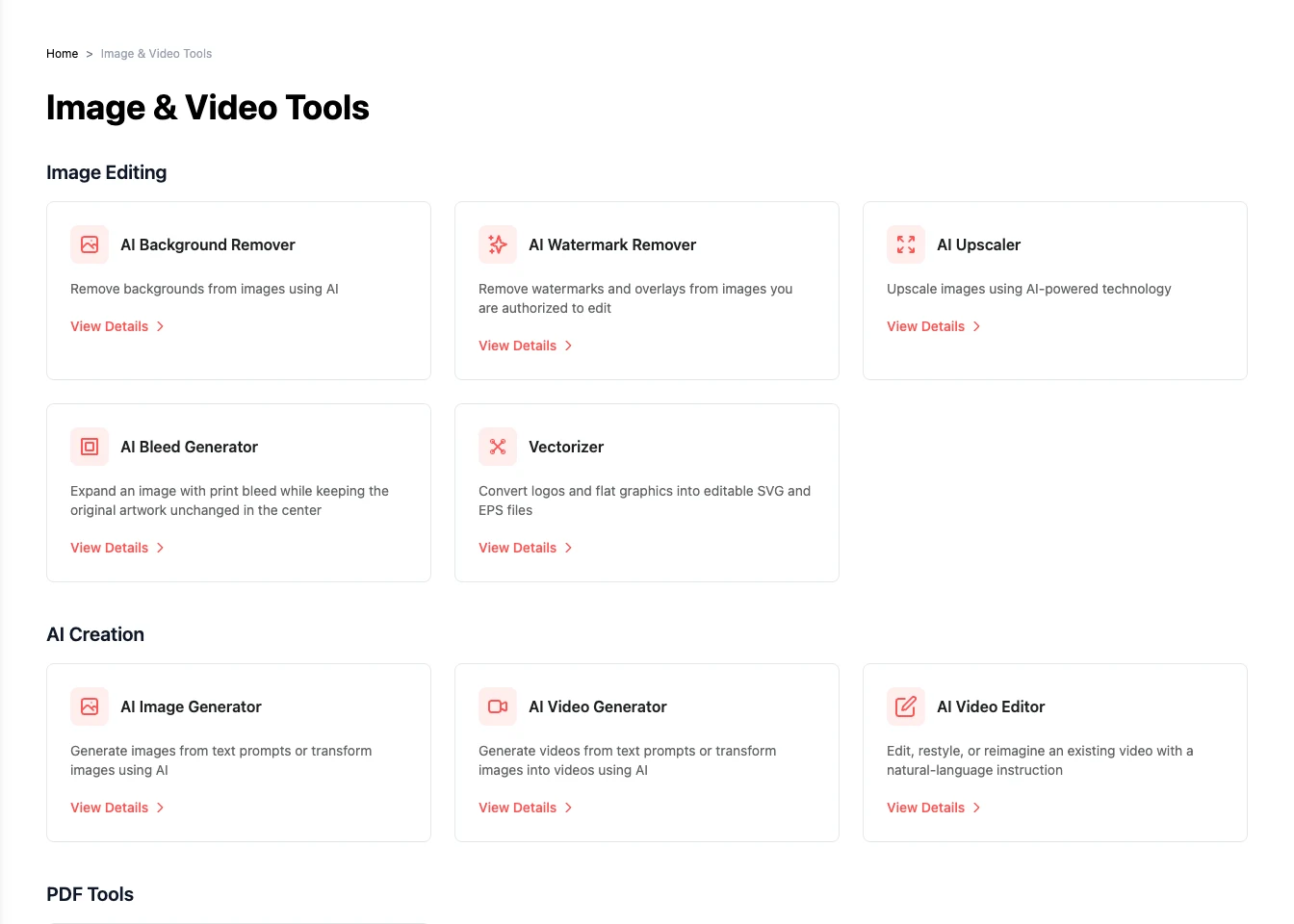
Open Image & Video Tools. Choose Background Remover to isolate a subject, Image Upscale to enlarge an image, or Bleed Generator to extend artwork around its edges. Use Image Generator when you want to create a new image from a description.
Step 2
Add the input and run the tool
Open the tool, upload your file or enter a description, and choose the available settings. Check the size and quality of the source image before starting. For generation, describe the subject, framing, and style you need.
For example: a landscape photograph of a café terrace in morning light, with empty space on the left for a headline.
Step 3
Download and add it to your project
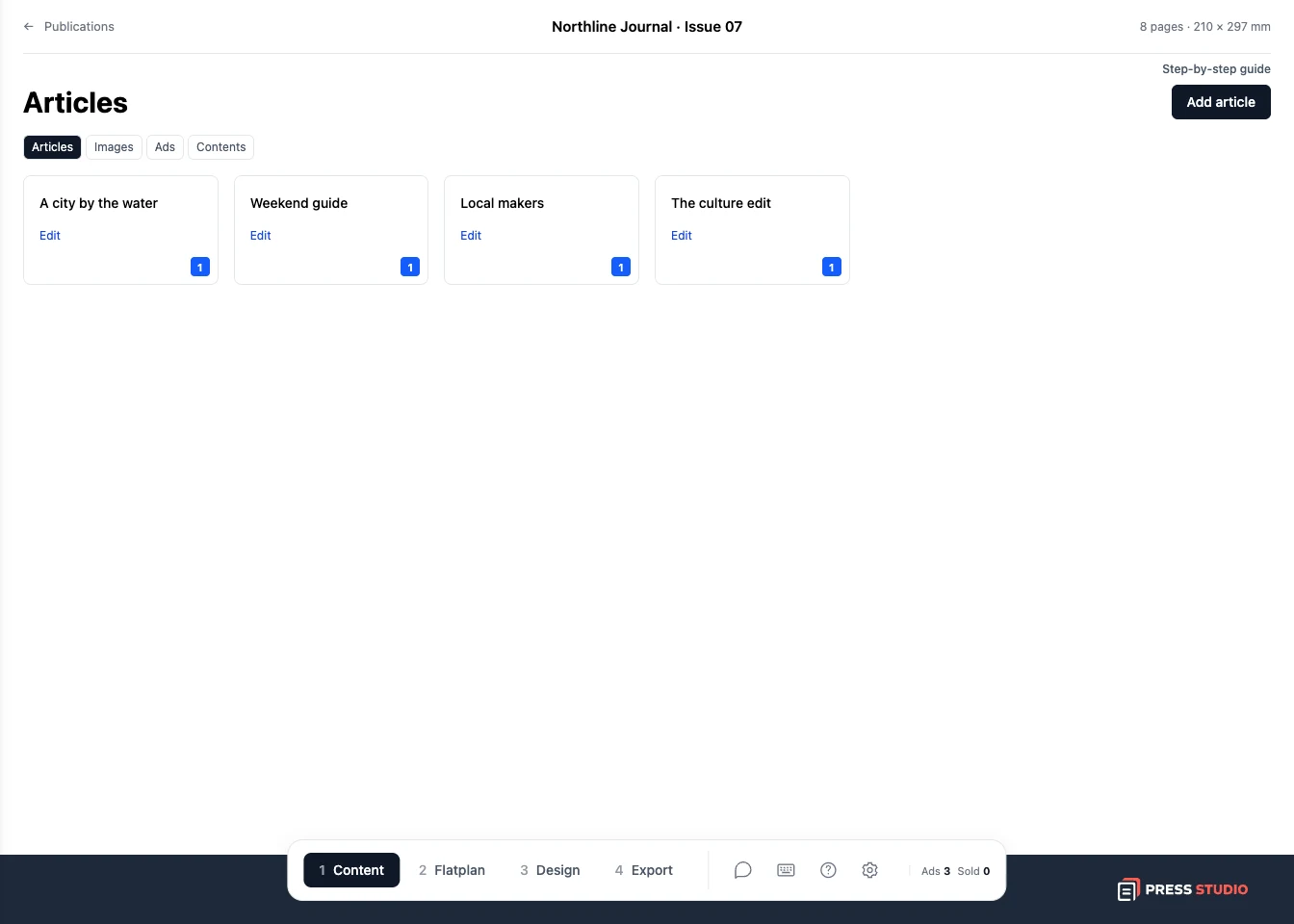
Review the result and download it. Open your publication, go to Content, choose Images, and upload the downloaded file. You can then drag it onto a page in Flatplan or use it with an article.
Try it with your own project
Download the finished image, then upload it in your publication's Content tab under Images. It is ready to place in your flatplan.
Create a Press Studio account