
Step 1
Check the content on the page
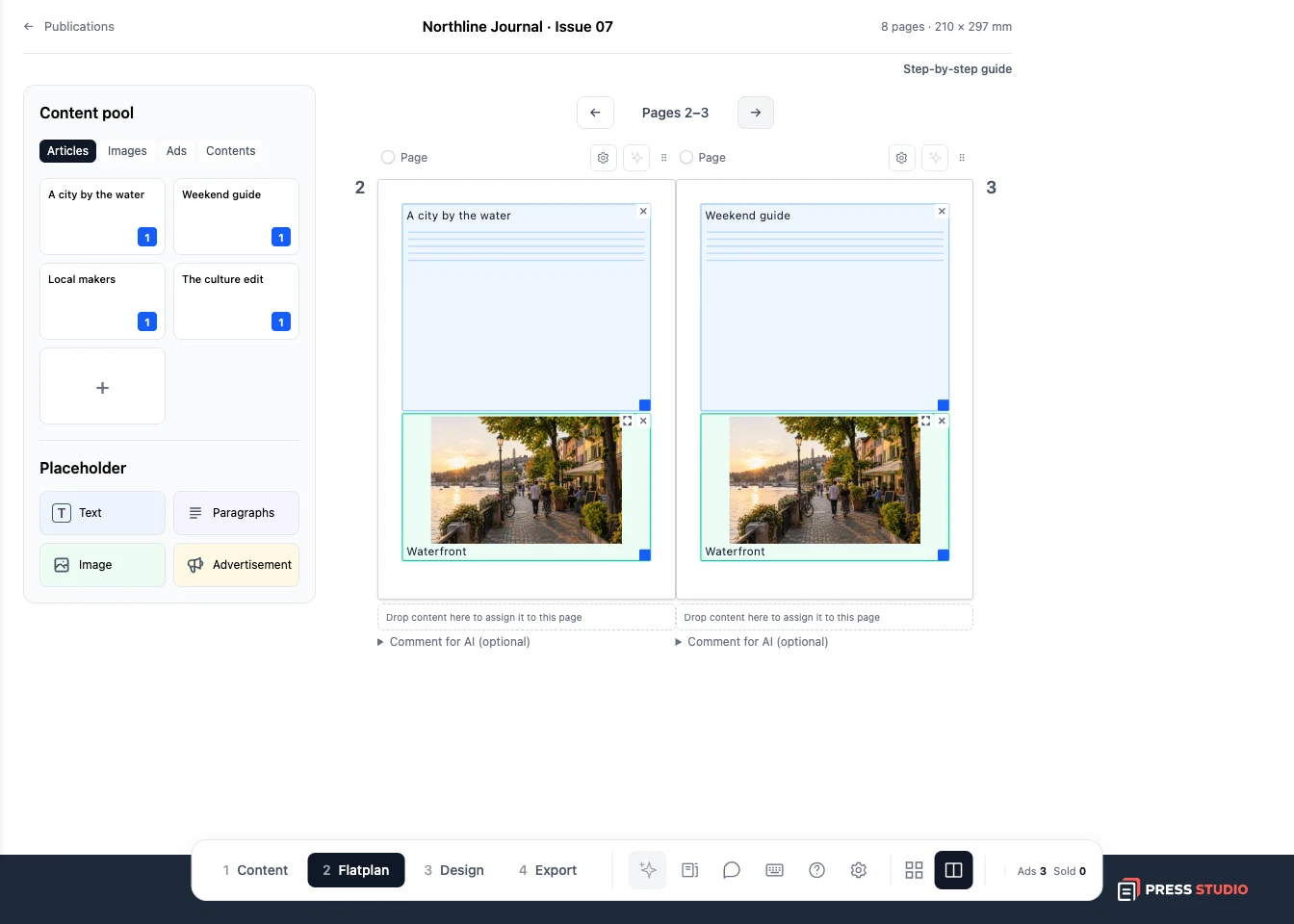
In Flatplan, check the articles and images assigned to the page. A block labelled Text or Image can be a placeholder rather than finished content. Add the actual article and upload the images you want to use.
Step 2
Generate and review one page
Open Design and use the generation button on the page you want to try. Wait for the result, then read the page and check the images. Use Generate all in the bottom bar when you are ready to generate the publication's pages together.
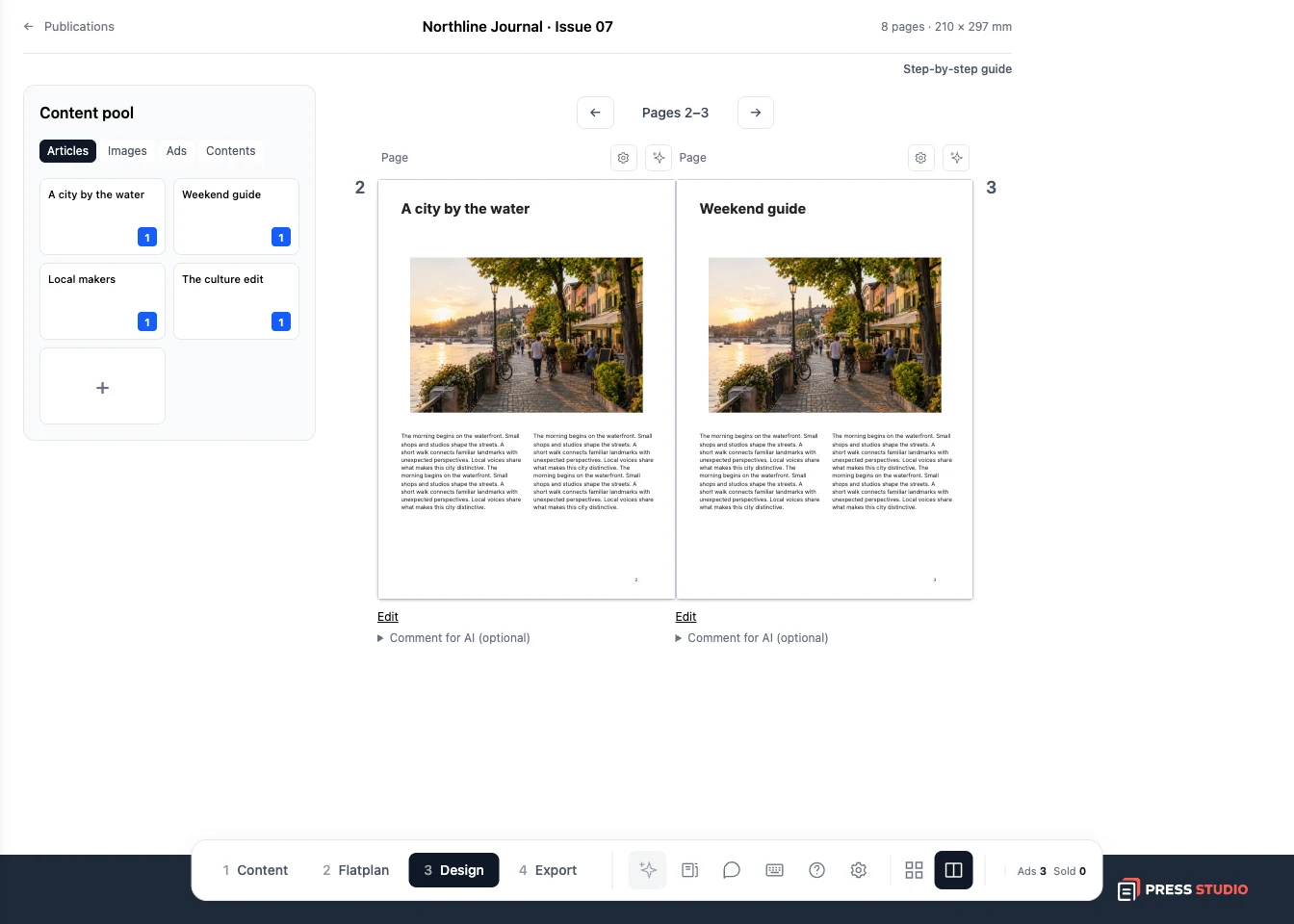
Describe a specific change when regenerating a page. For example: make the main image larger and keep the heading on two lines.
Step 3
Make the final edits and download
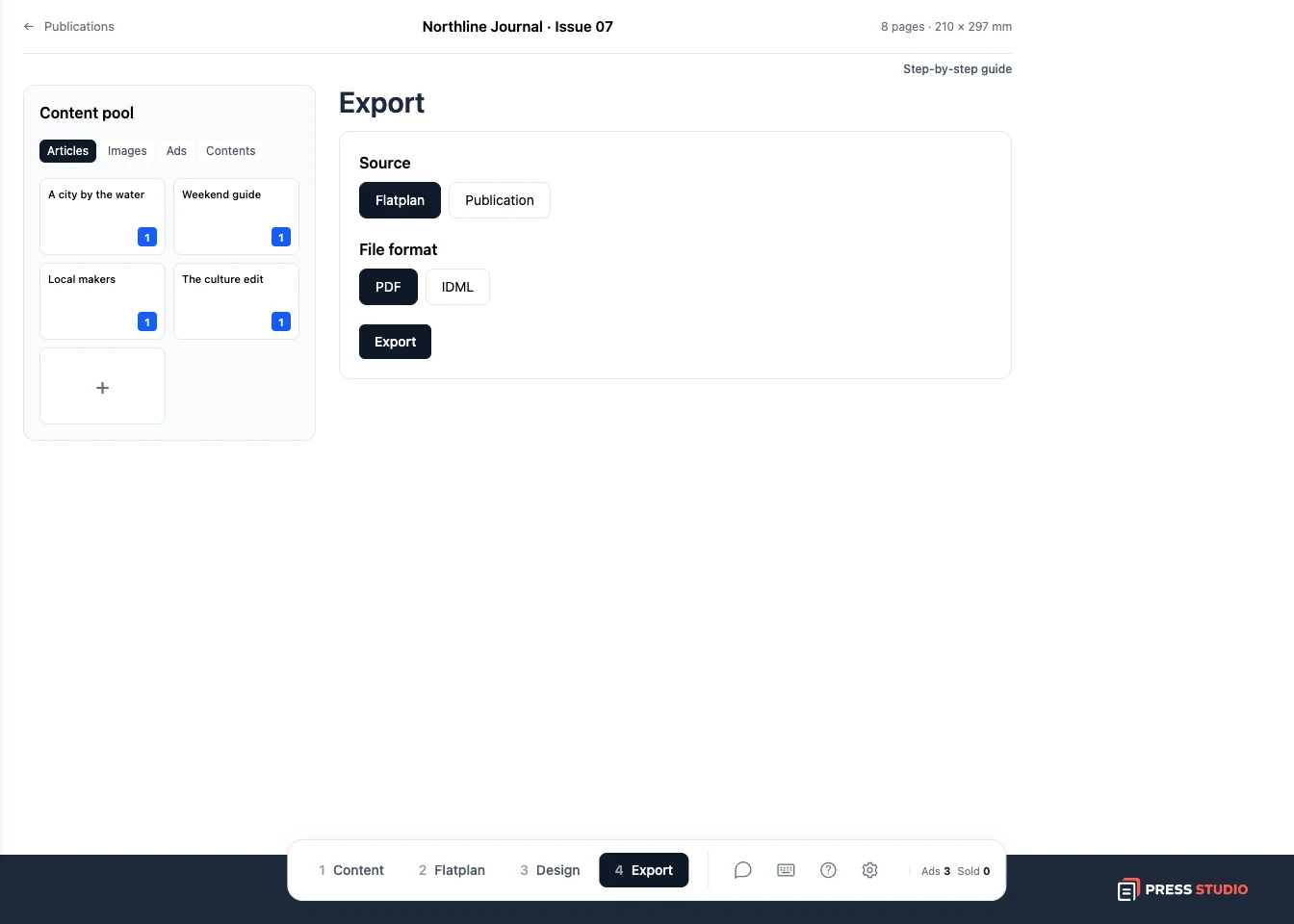
Open a page to adjust its text, images, and layout. Check the result once more, then open Export and choose Publication as the source. Download a PDF for review or IDML to continue in InDesign.
Try it with your own project
Review a complete spread at a readable size. Check headings, body text, image crops, and page numbers before exporting the publication PDF.
Create a Press Studio account