
Step 1
Name the check and choose what to review
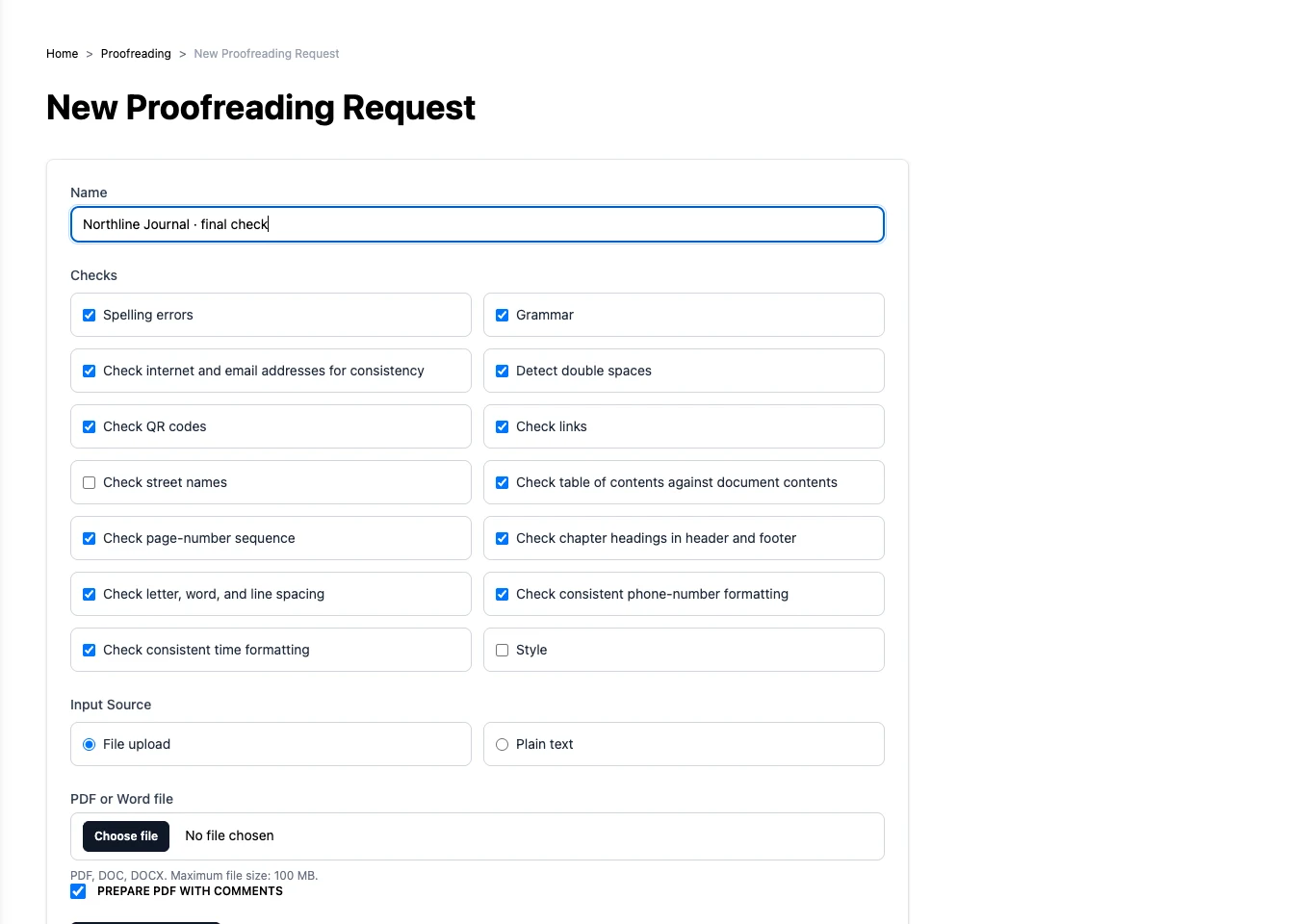
Open Proofreading and create a new request. Give it a recognisable name, such as ‘Autumn issue – final check’. Select the checks that matter for this document.
Step 2
Add your document or text
Choose the file input to upload a PDF or Word document, or choose text input and paste the copy. For a file, you can also ask for a commented PDF. Submit the request to start the checks.
Step 3
Work through the findings
Open the completed request. Switch between results by page and by check to work through the findings in the order that suits you. Read each suggestion in context before changing your document. Download the report, or the commented PDF if you requested one.
The check gives you findings to review. Make corrections in your source document so your working file stays up to date.
Try it with your own project
Work through the findings, make the changes in your source document, and check the revised version before handing it on.
Create a Press Studio account