
Step 1
Choose the type of job
Open Ads and create a new ad. Choose New Design for a fresh layout. Use Format Adjustment when you already have an IDML layout to adapt to another size; upload the source IDML for that option.
Step 2
Set the size and write the brief
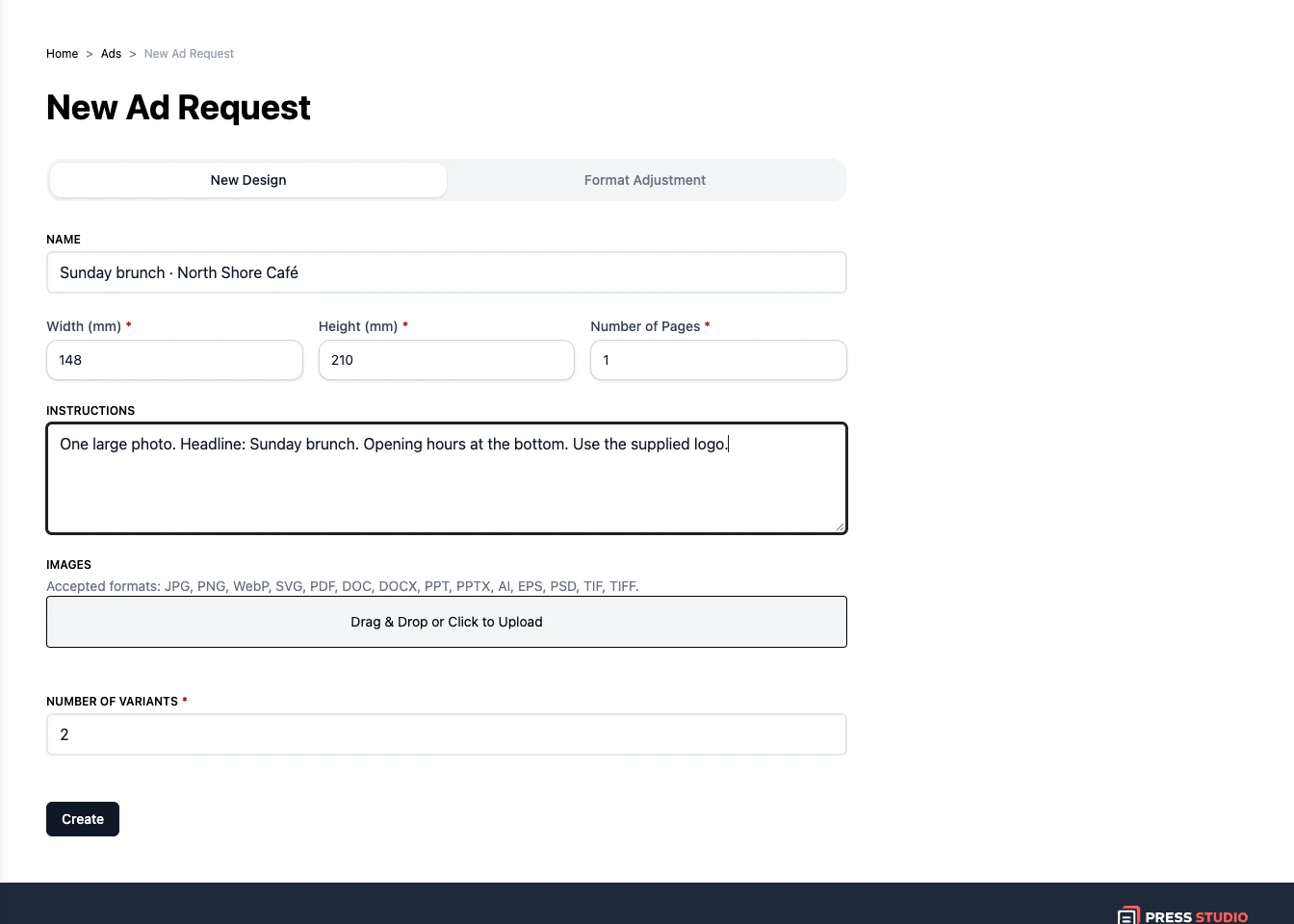
Give the ad a name, enter the width and height in millimetres, and set the page count. In Instructions, include the exact text, the audience, and the layout you have in mind. Upload the logo, photos, or other materials to use.
For example: a 148 × 210 mm café ad, one large photo, the headline ‘Sunday brunch’, opening hours at the bottom, and the supplied logo.
Step 3
Create and compare variants
Choose how many variants you want and click Create. When processing finishes, open the results and compare them. Check the small print as well as the overall design, then download the files offered for the variant you want.
Try it with your own project
Check the wording, contact details, logo, and dimensions in your chosen variant. You can also choose an existing ad from generations when adding ads to a publication.
Create a Press Studio account