
Step 1
Add your artwork
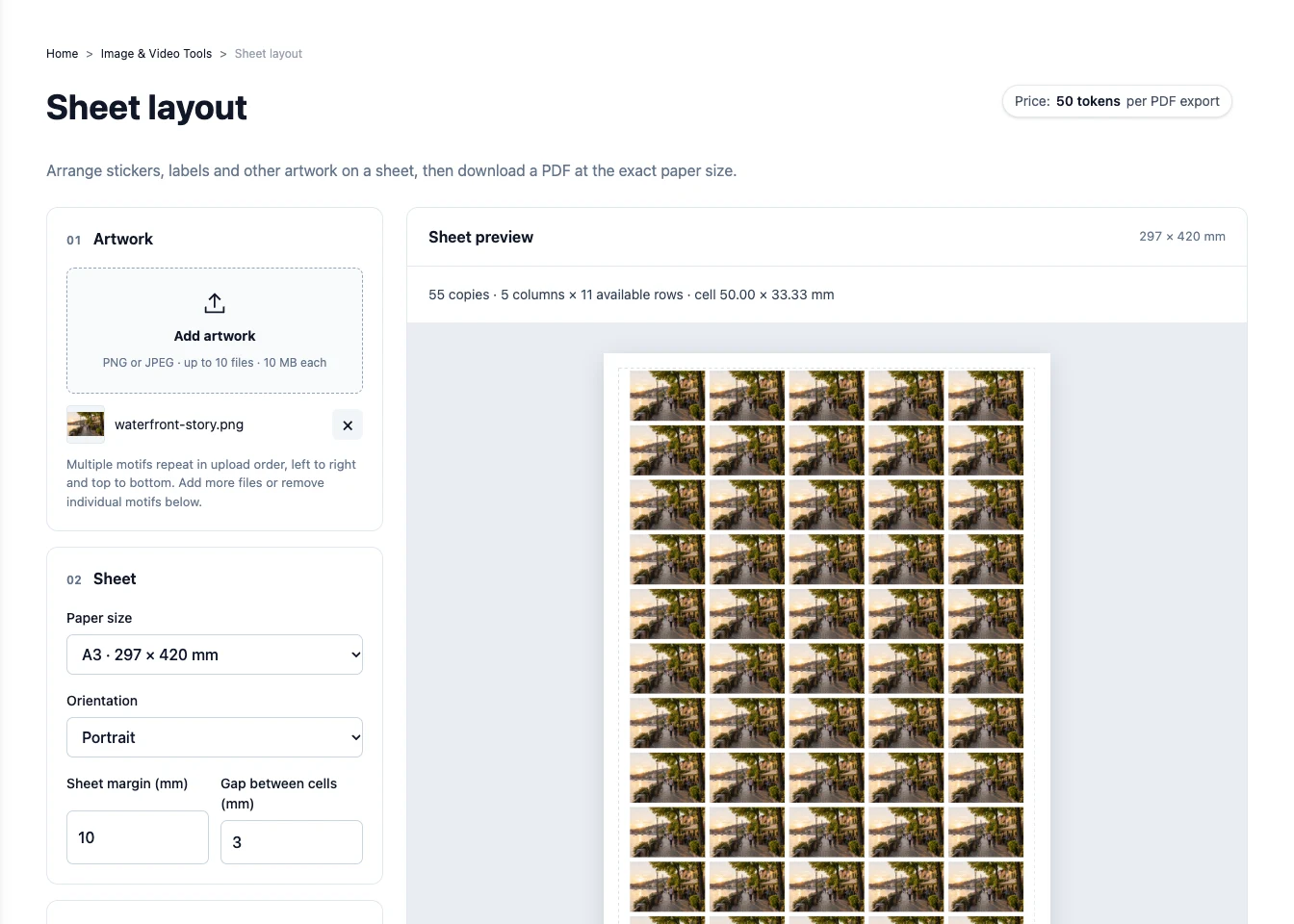
Open Image & Video Tools, then choose Sheet layout in the PDF tools section. Use Add artwork to upload PNG or JPEG files. With several motifs, the tool repeats them in upload order.
Step 2
Set the paper and motif size
Choose the paper size and orientation, then set the sheet margin and gaps. Under Arrangement, enter the motif's width and height or choose the number per row. Set a total quantity, or leave it empty to fill the sheet.
Check the preview after changing the size. The artwork fits inside each cell without cropping; a different shape can leave extra space.
Step 3
Download the sheet at its actual size
Check the preview and enable cutting lines if you need them. Click Download PDF. When printing, choose 100% or Actual size. The tool does not add bleed, so allow for that in your artwork when the job needs it.
Try it with your own project
Download the PDF and print at 100% or Actual size so the dimensions stay correct.
Create a Press Studio account